Set the volume of each app, and of each tab in Chrome.
Tabfader works from the menu bar of your Mac, and reaches the tabs of Chrome and the other Chromium browsers through its extension. The system volume stays where it was.
Download for macOSFree during the beta · macOS 26 or later
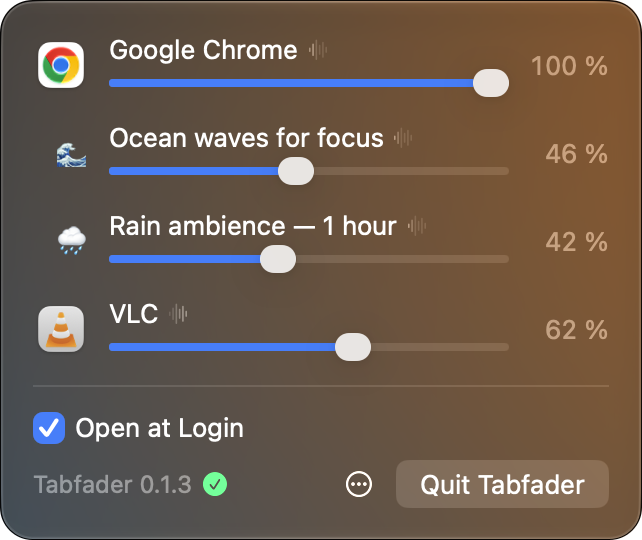
A slider for each app that plays sound.
One click mutes it. Tabfader remembers each volume, even after a restart.
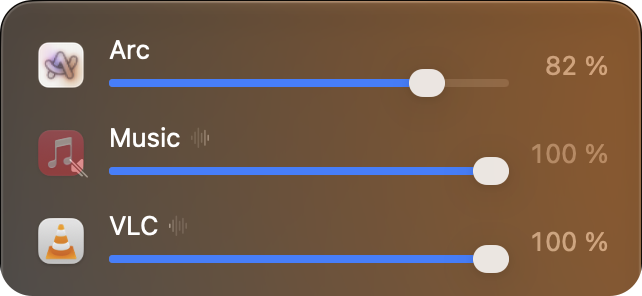
Tabs show under their browser, each with its own slider.
Tabs need the Tabfader extension, in Chrome and the other Chromium browsers. Turning the browser down turns its tabs down with it, and muting it mutes them.
Get the extension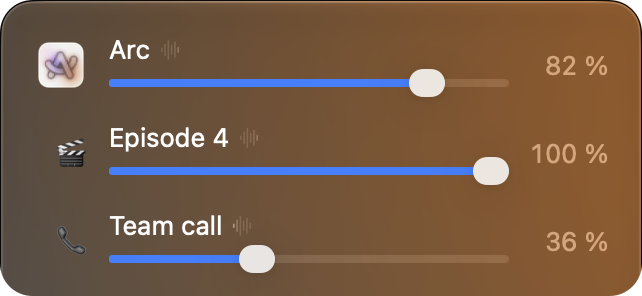
Back to 100 % when it quits
Every app and every tab plays at full volume again the moment Tabfader quits.
Follows the output
Switch from the speakers to headphones mid-song: the volumes move to the new default output.
No account, no telemetry.
The sound goes through Tabfader to be scaled, and is never recorded or stored. Two requests leave the Mac: the daily check for updates and, only if you turn them on, crash reports.
Read the privacy policyRequirements
- macOS 26 or later, on Apple silicon or Intel.
- The System Audio Recording permission, which macOS asks for the first time Tabfader changes a volume.
Browsers
- Chrome, Arc, Brave, Edge, Dia and Vivaldi: per app and per tab, with the Tabfader extension.
- Safari, Firefox and the other browsers: per app, like any app that plays sound.